I’m currently in search for a workflow to synchronize my local development with a live site. One of the workflow I tried is by using the WordPress Studio, because it offers a direct and seamless connection to the hosting service WordPress.com. Here’s my walkthrough and review.
Requirements:
- WordPress Studio.
- WordPress.com account.
- A staging/live site on the WordPress.com hosting. You need to sign up for a Business or Commerce plan, because the synch feature is only available for sites on those plans.
Steps to pull a live site to local:
- Open your Studio app.
- Log in to your WordPress.com account.
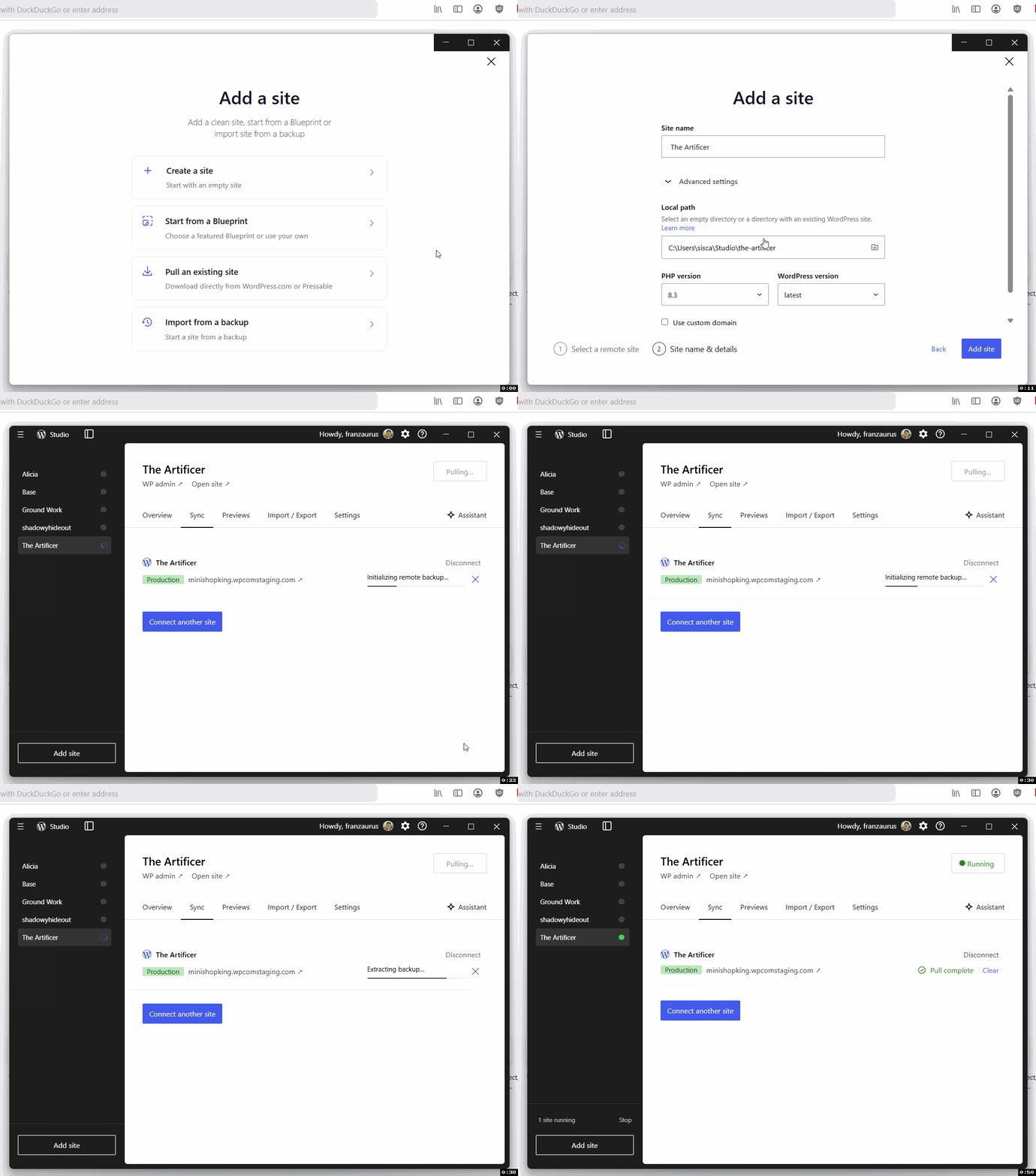
- Select the Add site button, and choose Pull an existing site.
- Select the name of the site you want to pull from, the available sites are listed under the production label. The pulling process will take sometime, depending on your internet speed and the size of your site. During the process, you can make some adjustments like assigning a local custom domain, and enable the “https” options for the pulled site. You can use the video below for a quick reference.
- After the pull process is done, you can access the local site by clicking the Open site link.
Steps to push to a live site:
- After you’ve finished editing the local site.
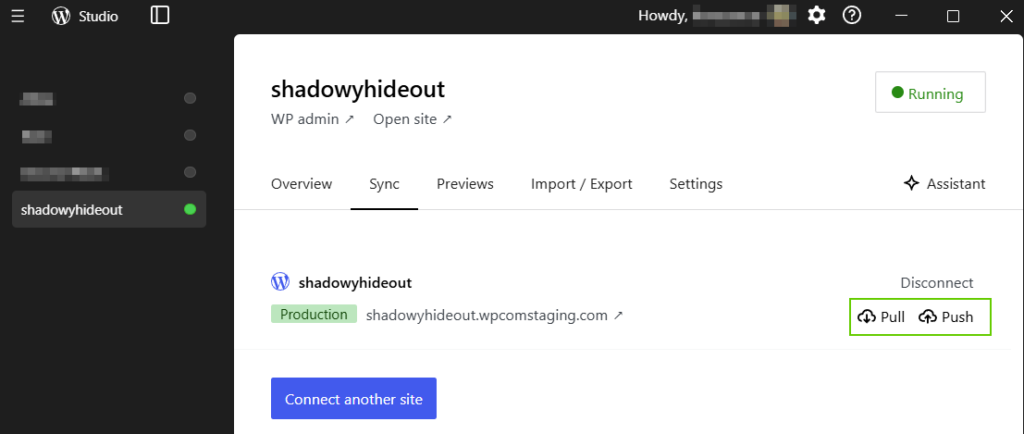
- Navigate to the site’s Sync tab.
- Push the changes back to the live site by clicking the Push option.
- During the process, you can choose to push all the files and folders, the database or only select some of them.
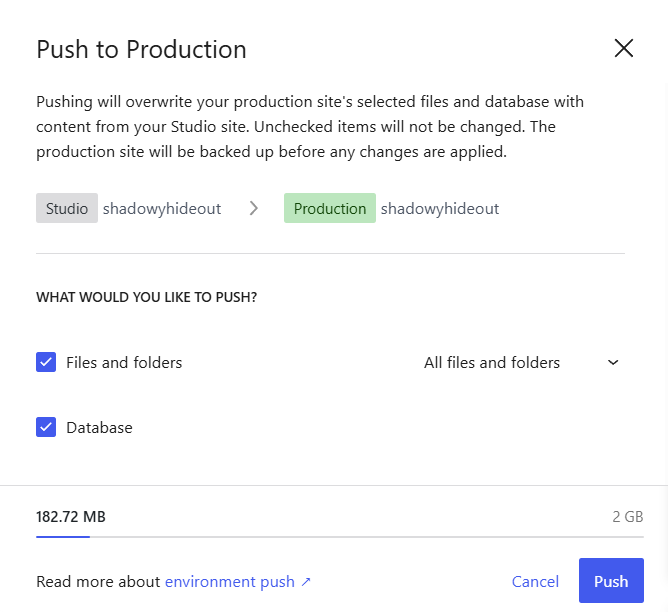
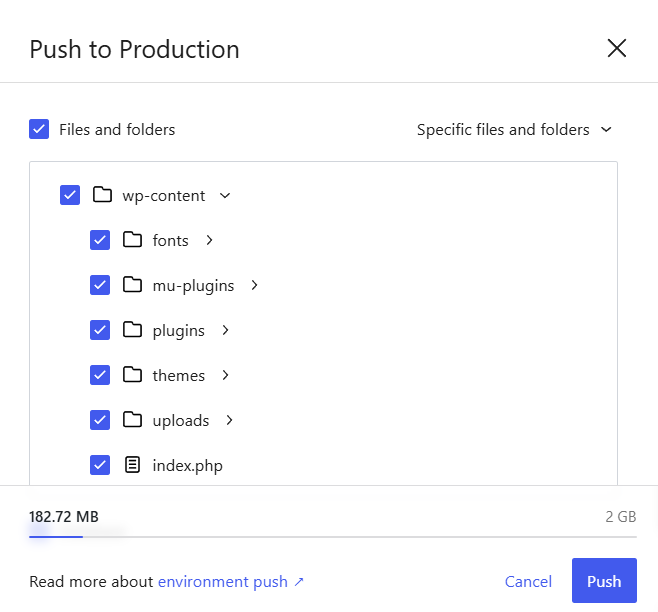
After the push process is complete, you can visit the live/staging site and see the reflected changes.
Review
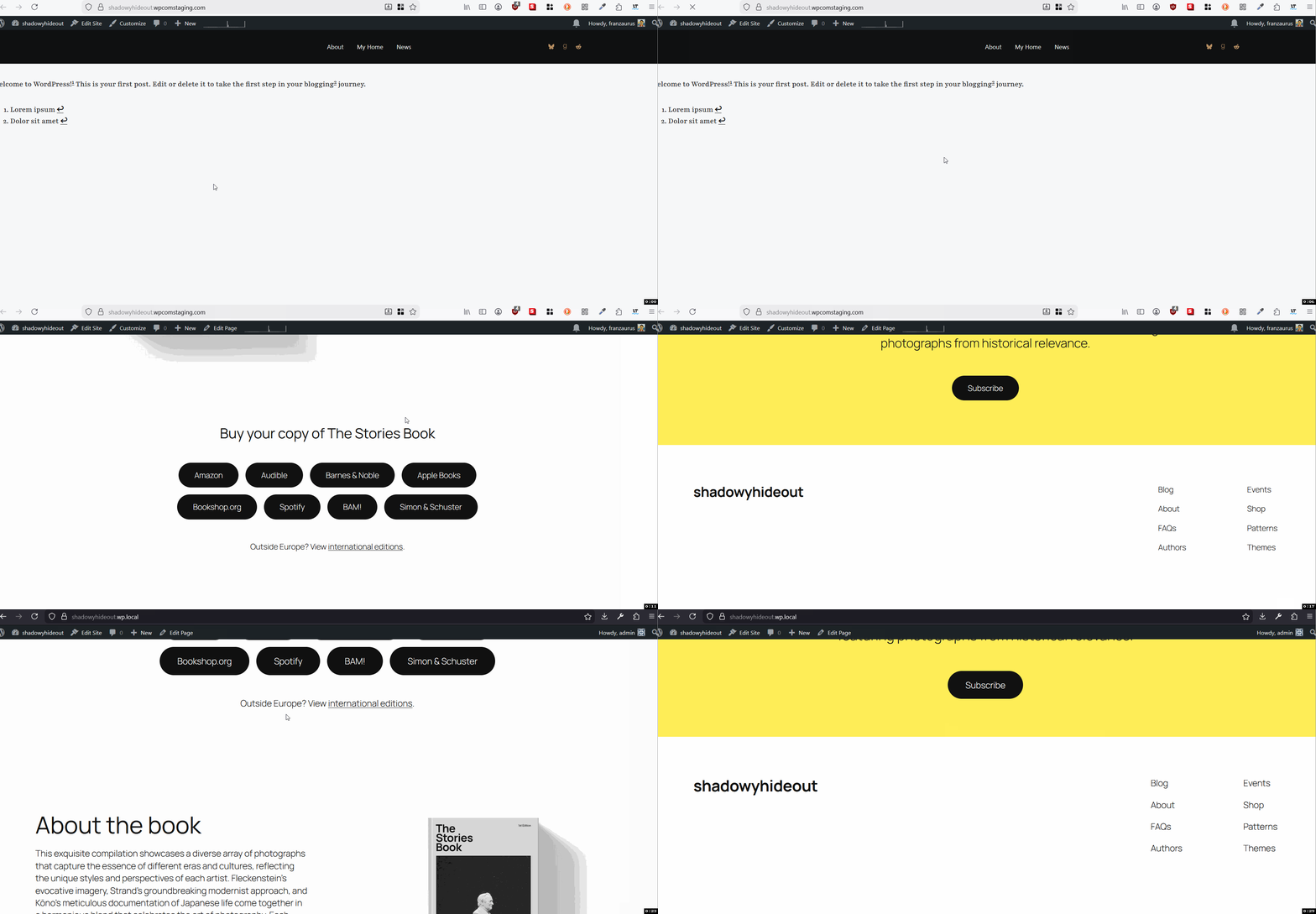
I found the Site Editor of the pulled site loads slower compare to a local site that was created directly in the Studio. I tested both of them using Twenty Twenty-Five theme, and a homepage with pattern “Landing page for book.”
When I made edits on the pulled site, I experienced this delayed response across all sections of the Site Editor, like opening and exploring patterns, accessing navigation panel, or when clicking back to the WP-Admin.
Here’s some data from the Developer Tools’s Network tab.
| Site creation method | File | Time |
|---|---|---|
| Pull an existing site | site-editor.php | 3512ms |
| Create a site | site-editor.php | 1086ms |
Share your thoughts